
This tutorial goes through the process to search for products and add them to your Company Store. This process replaces the "Product Copy" process that was previously used. Now you can add products to your Company Stores within the Products area itself. By default, the product search only shows OneSource items, but you can access *legacy product data if required.
*NOTE: Legacy product data is no longer being updated and we recommend using OneSource product data to ensure you receive the most up to date product details.
Article Sections
- Access Product Search
- Search Products
- Assign Categories
- Add Selected Products
-
Notes for Product Search & Add
Access Product Search
- Click into "Products & Categories" and navigate into the Products page.
- Next, click "Add Product" and
- Click "Search Products."
Search Products
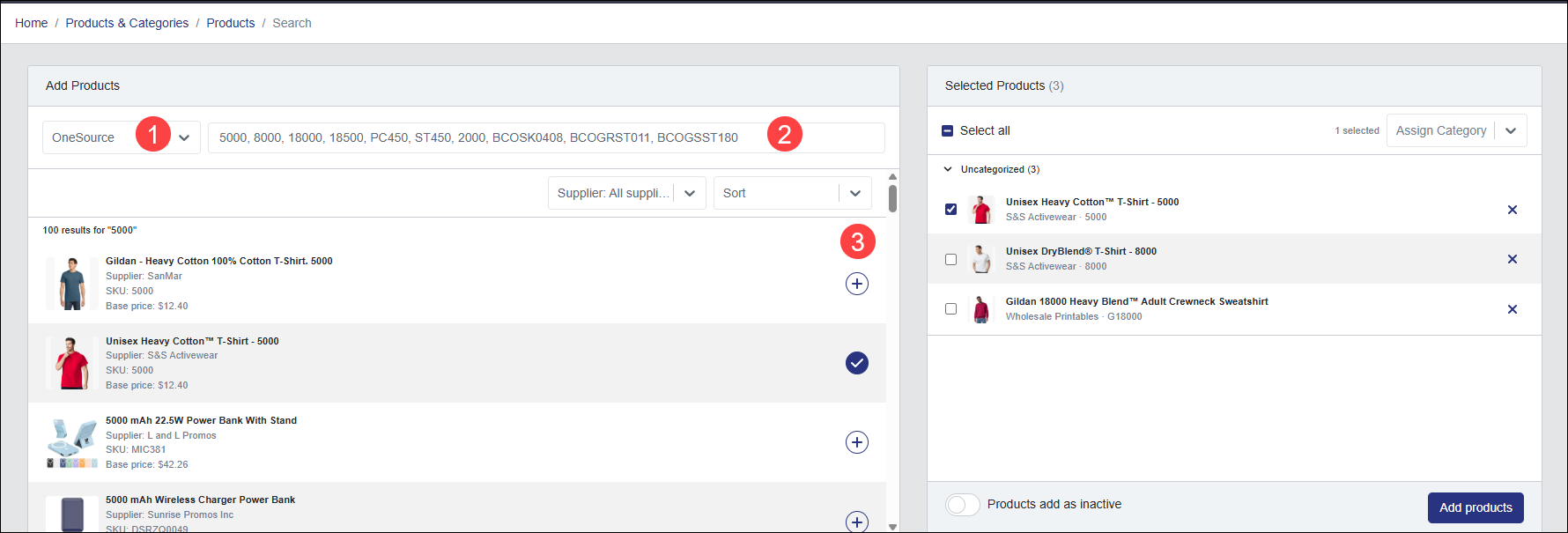
- After clicking Search Products, you will by default be searching through available OneSource products.
- Input a search term/keyword, and you can separate multiple search terms by comma.
- To start a new search, click the "x" in the field to delete the search term, or use your backspace key to clear out the current search terms.
- Use the plus icon to add an item into Selected Products and use the checkmark to remove an item.
- You can also click the "x" on an item's row under Selected Products to remove it from items you will copy.
- You can also click the "x" on an item's row under Selected Products to remove it from items you will copy.
Filter Products
If you are searching for Products through OneSource, you can filter by available OneSource suppliers, and sort the data that appears.
You can also click "see more" to see more products available when using comma separated search terms.
If you need to search through Legacy Products or Org Products/Organization Catalog products, click the drop-down to change the products you're copying from.
Legacy Products
Legacy Product data is older product data previously used in Company Stores and is no longer being updated. You can only include one search term at a time and sorting/filtering settings are not available for Legacy product data results that appear in the search
Organization/Organization Catalog Products
To add items from other stores, click "Org Products" from the menu and then you can navigate into individual stores that have Organization Catalog enabled to add items from them.
Assign Categories
To assign Selected Products to categories in the store:
- Check the box for an item (and/or check the boxes for multiple items). You can use "Select All" to check the boxes for all Selected Products.
- Click "Assign Category."
- Select a category from the list, and the item will be added to it.
- Repeat steps 1-3 for any other items that need to be assigned to categories.
If you need to remove an item assigned to a category, after checking the box for the item, choose "Uncategorized" from the list.
Add Selected Products
Once you have assigned categories to items if required, turn on the toggle next to Products add as inactive/Products add as active to add the products as active items to your store, or keep this toggle off so the items are added to your store, but marked inactive. Then click "Add Products."
You will see a banner indicating the items are being added and once this process is completed, the product list will reload and reflect the new items as well as a confirmation message that the process is complete.
Notes for Product Search & Add
- Once products have been added to the store, you can see if the Vendor assigned has inventory for the item.
- The OneSource products search allows for comma separated search terms to search for more than one products' results at a time.
- Legacy Products are no longer being updated and managed, and while these items are still available for use, we recommend using OneSource products which are actively being managed by suppliers.
- Products can be added without being assigned to a category, and you will receive a confirmation message if you are adding items to your store without assigning a category.
- You can add up to 100 products at a time to your store, but we recommend breaking this up into smaller batches in case you need to make edits to items after they have been copied.
Comments
0 comments
Article is closed for comments.